"The Same as Last Time": A Regular's Medicines Back in the Cart in Seconds
He has bought from you for years. Diabetes, blood pressure, a tablet for cholesterol: the same handful of medicines every month. Today he puts his bag on the counter and says what regulars always say: “The same as last time.” The person behind the counter nods. Then the real question starts: what was last time, and how many?
The minute nobody remembers
Every pharmacy has customers like this. They’re the steadiest money the shop makes, and serving them should be the easiest sale of the day. It rarely is, because “last time” lives in someone’s memory, or in no one’s:
- The empty strip from the pocket. The customer fishes out a strip or a box, and you sell from that. Whatever wasn’t in the pocket gets missed.
- The old prescription. It says what the doctor wrote months ago, not what the customer has actually been taking, or how much at a time.
- Turning over invoices. Someone flips through the carbon copies, or scrolls through the sales list looking for the right name on the right day, while the customer waits.
- Asking the staffer who served him. They’re off today.
Billing software keeps every invoice, but finding one customer’s medicines in it is still a hunt. The khata keeps nothing a cashier can search.
Pick the customer first
In MediPharma24, start the sale the way you’d start any sale for a regular: pick the customer in the POS customer box. Then tap Sales history in the top bar of the sale screen.
A drawer opens beside the sale, with two tabs: Invoices and Products. Because the cart already has a customer, it opens straight on Products, the list of everything this customer has bought in your shop, medicines or not. There’s one row per product, and the most recently bought come first.
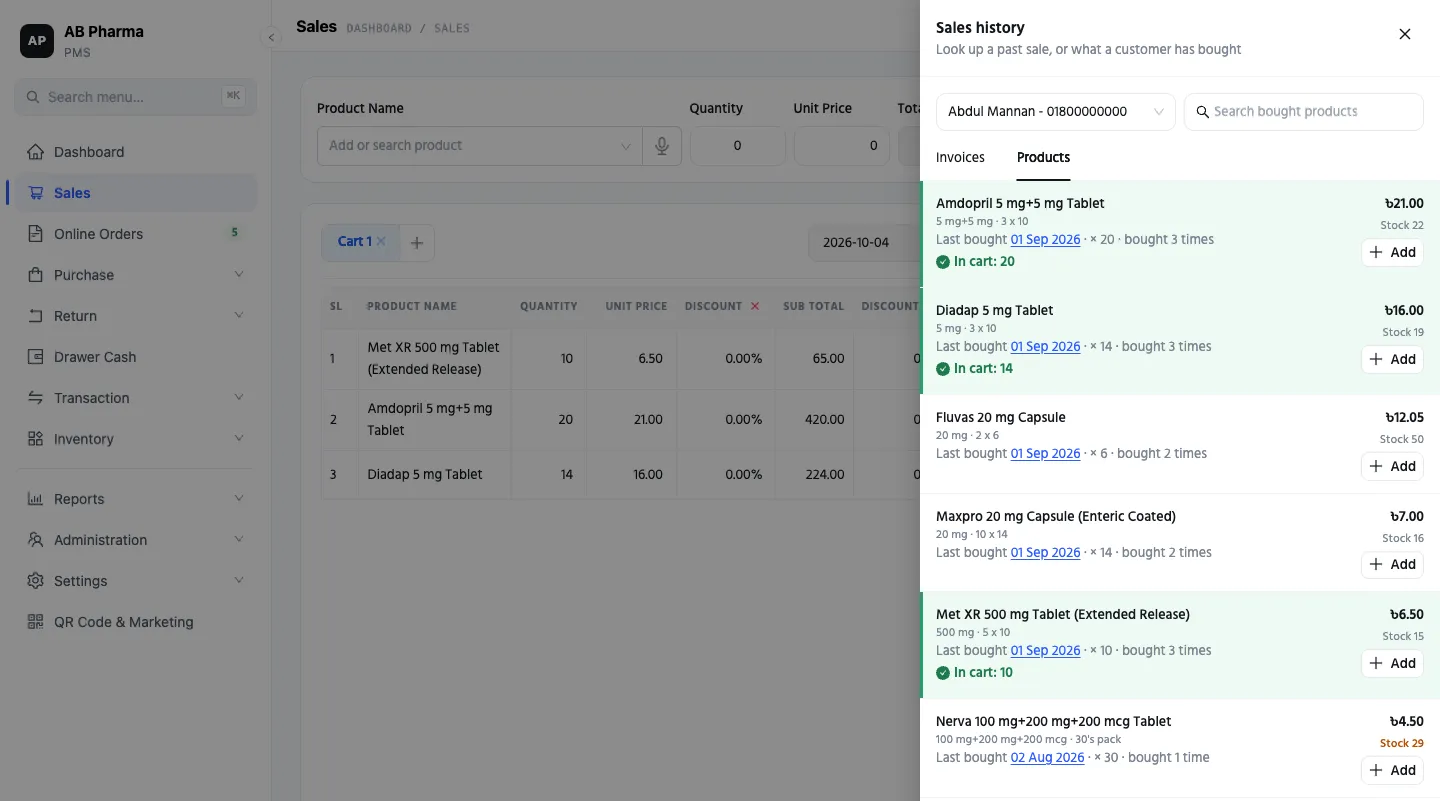 The customer and the shop in this screenshot are made up. The drawer lists
what he has bought here and when, and the three rows tapped so far are
already in the cart behind it, at last time’s quantities.
The customer and the shop in this screenshot are made up. The drawer lists
what he has bought here and when, and the three rows tapped so far are
already in the cart behind it, at last time’s quantities.
What each row tells you
- When they last bought it, and how many. “Last bought 01 Sep 2026 × 20”: the date, and the quantity on that sale.
- How many times they’ve bought it. “Bought 3 times” means it was on three of their sales. That’s how you tell the medicine they take every month from the one-off.
- Today’s price and today’s stock. The price shown is what it sells for today, not what they paid back then. Stock is what’s on your shelf now.
The last-bought date is a link. Tap it and that whole invoice opens in the drawer: every line, the total, how it was paid. Bought products at the top brings you back to the list, where you left it. So if the customer says “and the other thing I took that day”, it’s one tap away.
There’s a search box too, for a customer who has bought a long list over the years.
Tap Add, line by line
Each row has an Add button. Tap it, and that product goes into the cart already on the screen, at the quantity they bought last time. There’s no new cart, nothing to retype, and no quantity to remember. If the product is already a line in the cart, the quantity goes onto that line.
The drawer stays open, so you go down the list: Add, Add, Add. A short note confirms each one (“Added … × 20”), and every row that’s now in the cart shows In cart with the quantity. A line the customer doesn’t want today, you simply skip.
That’s the whole job. Pick the customer, open Sales history, tap Add on the lines he’s taking. The cart holds last month’s medicines in the time it used to take to find the carbon copy. Then you check out as with any sale: cash, bKash, bank or baki, one invoice.
When the shelf can’t cover it
The list is built from what the customer bought, so it doesn’t hide a product just because you’re out of it today:
- Out of stock rows are greyed out.
- If your shop doesn’t sell below zero, an add is cut to what the shelf still holds beyond what’s already in the cart, and the POS tells you so. An out-of-stock row can’t be added at all.
- A product your shop no longer carries reads Not sold here now and can’t be added.
So the counter knows straight away what to say: “Two strips today, the rest on Thursday.”
The cart is for someone else? It asks first
The drawer has its own customer box, so you can look up anyone’s history, not only the cart’s. If the cart is for one customer and you add from another’s list, nothing changes quietly. The drawer warns, “The cart is for …”, and gives you two choices:
- Switch cart to … makes the cart this customer’s. The lines already in it stay.
- Add anyway adds to the cart as it is, for the customer it was already for.
Until you choose, the Add buttons wait, so the cart’s customer never changes behind your back.
Picking the customer pays twice
The list exists because each sale was recorded against the customer’s name. That same name is what keeps baki honest. If he takes this month’s medicines on credit, the due goes on his account, not on a slip (Customer baki without losing money). A sale rung up with no customer is a walk-in sale. It belongs to nobody, so it never shows up in anyone’s history.
What it doesn’t do
- It only knows sales made under the customer’s name. Earlier sales rung up as walk-ins aren’t in it. Start picking the customer for your regulars, and the list builds itself.
- One shop at a time. It shows what the customer bought in the shop you’re selling from. It doesn’t combine purchases across your branches.
- It doesn’t choose or check the medicine. It shows what was sold before. Whether that’s right to give today is still the counter’s call.
- It shows today’s price, not the old one. If a price has moved since last month, the cart has today’s.
Where this fits
Regular customers are a pharmacy’s steadiest income. Serving them quickly, without guessing, is how you keep them. This turns “the same as last time” from a memory test into a list on the screen, and every sale made that way adds to the list for next month.
Next time a regular says “the same as last time”, pick their name first, then open Sales history.
This is part of a series for pharmacy owners: Customer baki without losing money · Counting the drawer · Where cash leaks in a pharmacy · the full tour.